Blender add-on · Materials
Make It Old
Anything you model, years older in one click. Rust gets into the gaps, dirt settles in the corners, dust lands on top, and paint chips off the edges. Your material stays exactly as it was underneath.
Pick a look. Press the button.
- Select one object or a whole scene.
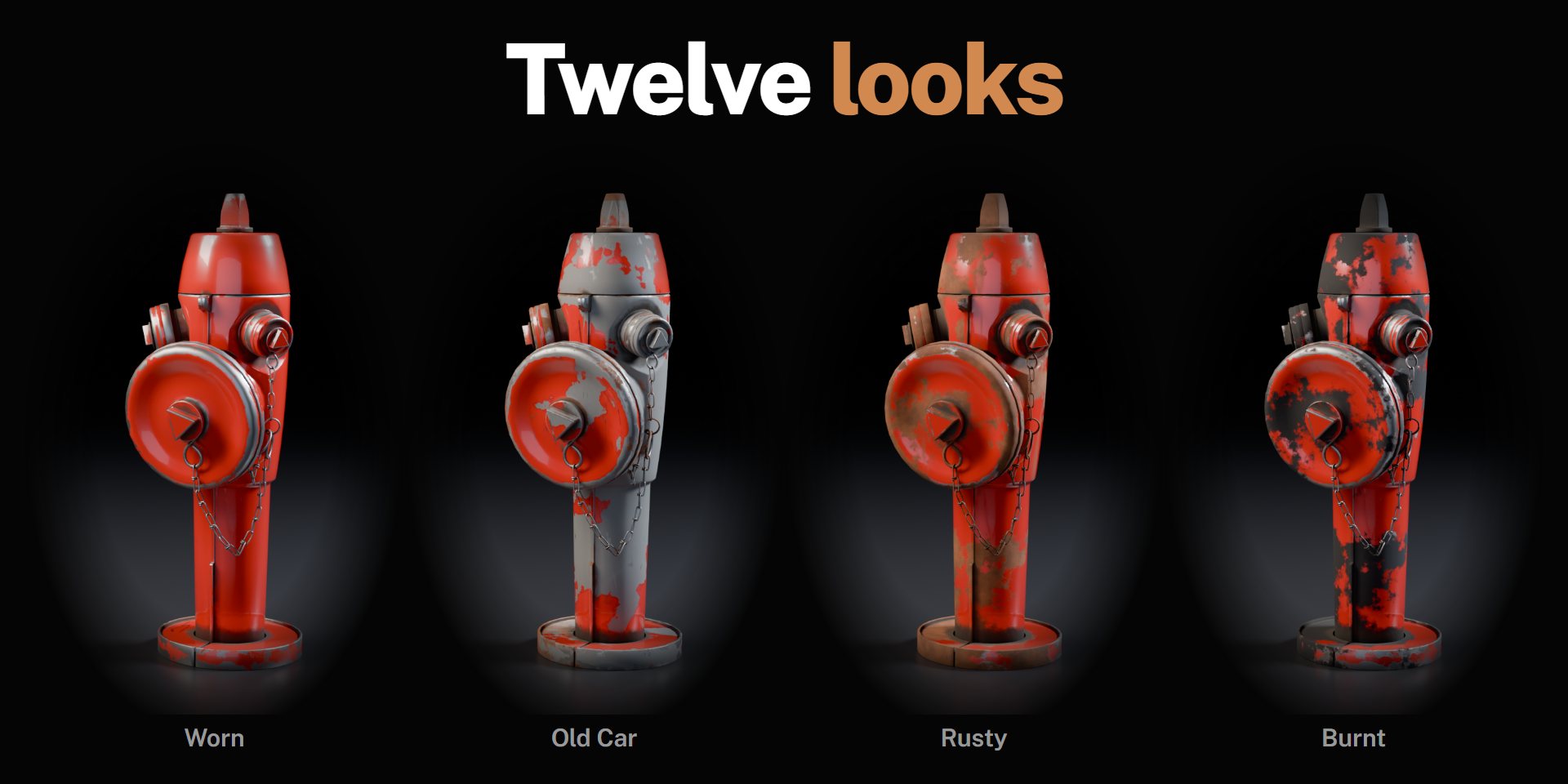
- Pick a look: Worn, Rusty, Abandoned, Dusty Attic, Grimy, Overgrown, Burnt, Shipwreck, Old Car, Battle Damage, Ancient Ruin or Old Bronze.
- Press Make It Old.
- Drag Age. Done, or keep going: every layer has its own controls.
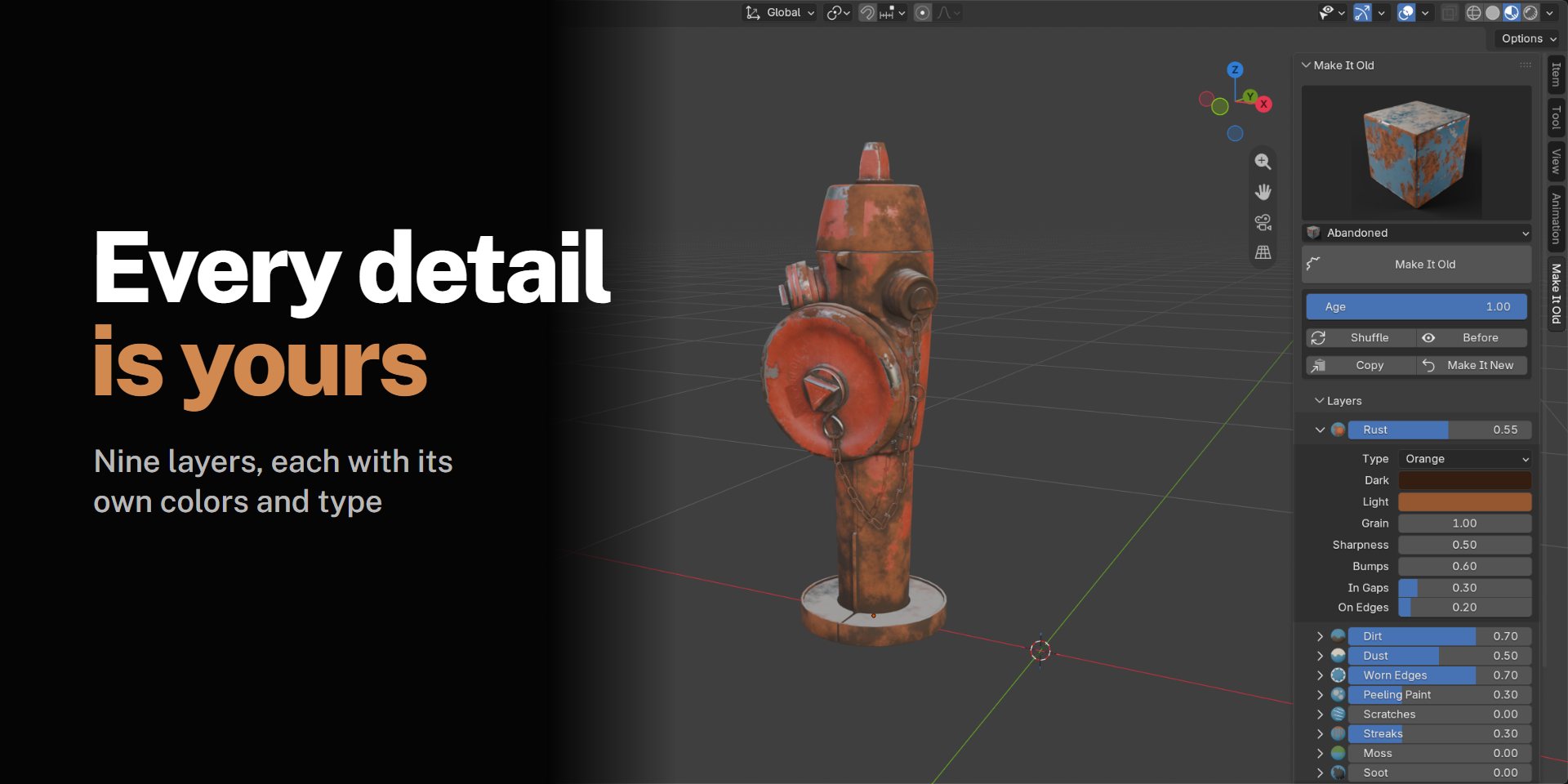
Nine layers, each fully under your control
Open any layer and set its amount, its type, its colors and where it gathers.
- Rust. Orange, dark, flaking, red oxide or copper green. Grain, sharpness, bumps, and how much it collects in gaps and on edges.
- Dirt. Grime, mud, oil or sand. Packs into corners and settles low.
- Dust. Grey, sand, ash or snow, on everything facing up.
- Worn edges. Paint rubbed off sharp edges with bare metal showing.
- Peeling paint. Chips of paint gone, showing primer, metal, wood or plaster.
- Scratches, streaks, moss and soot, each with its own settings.
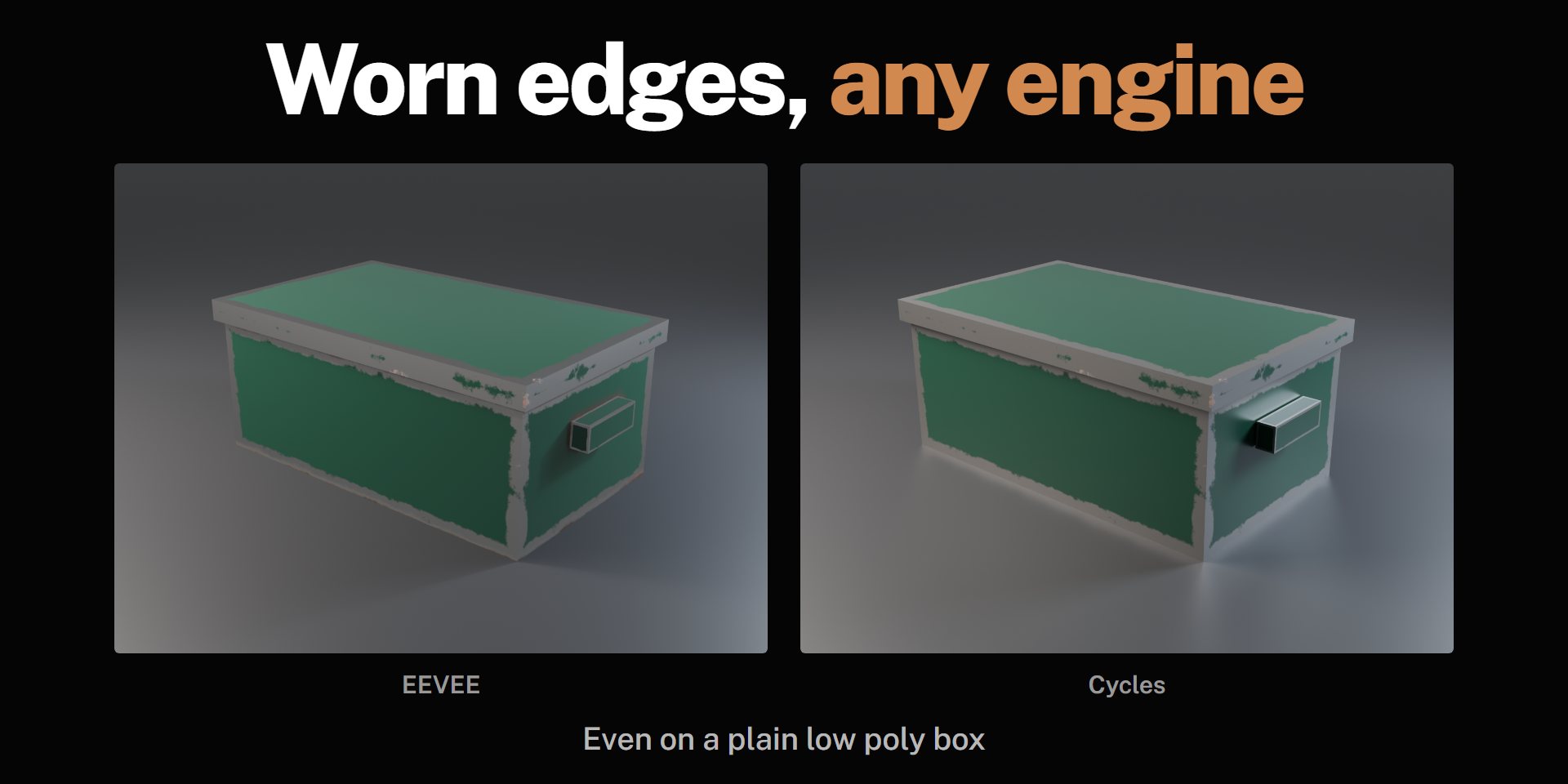
Worn edges that work everywhere
Most aging tools find edges with the Bevel or Pointiness nodes, which only work in Cycles and look blotchy on low poly models. Make It Old measures the distance to every sharp edge of your mesh and stores it with the model. You get a clean, chipped edge in Cycles and EEVEE, on an 8 vertex cube or a million polygon scan.
See it before and after
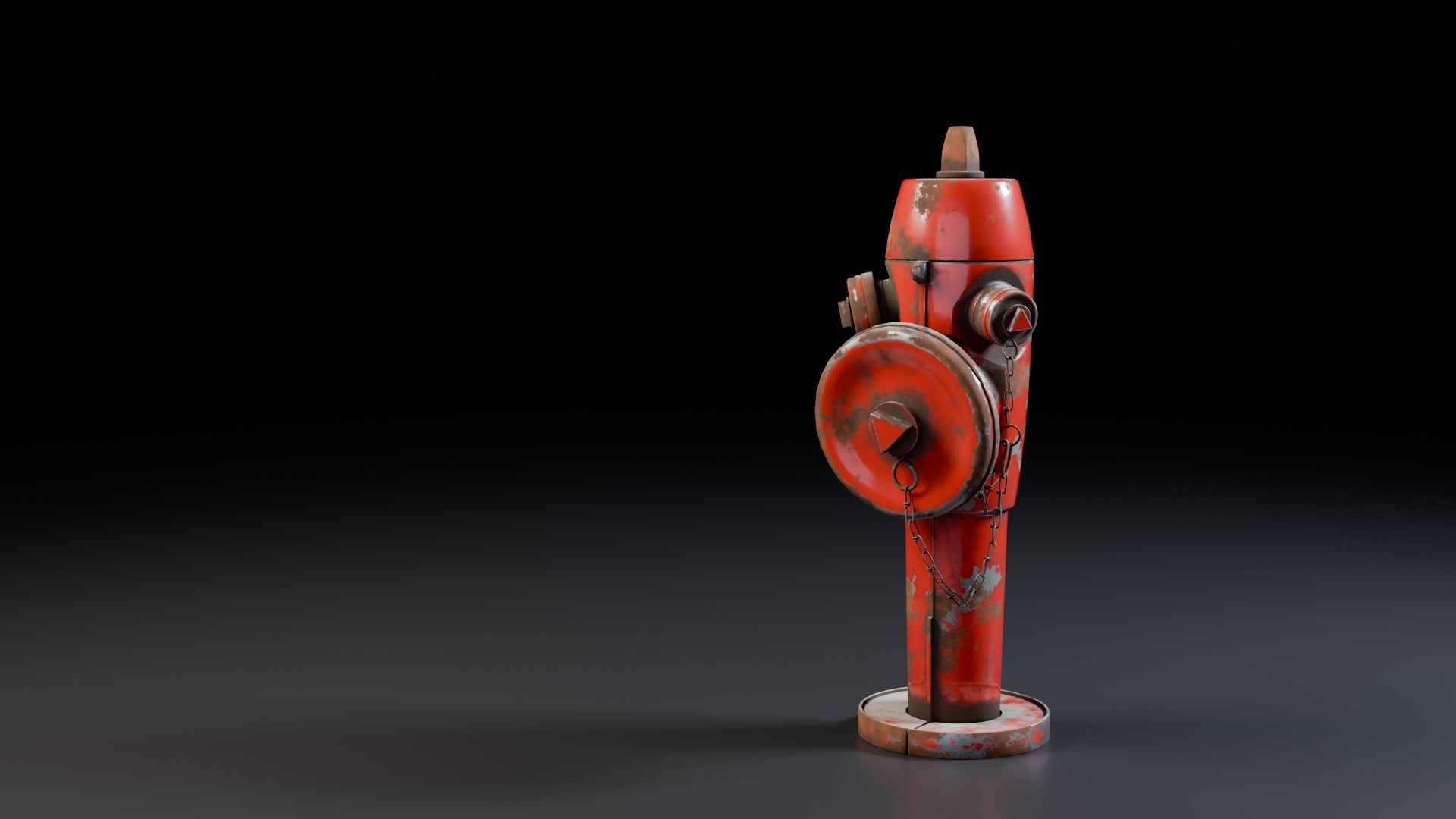 BeforeAfter
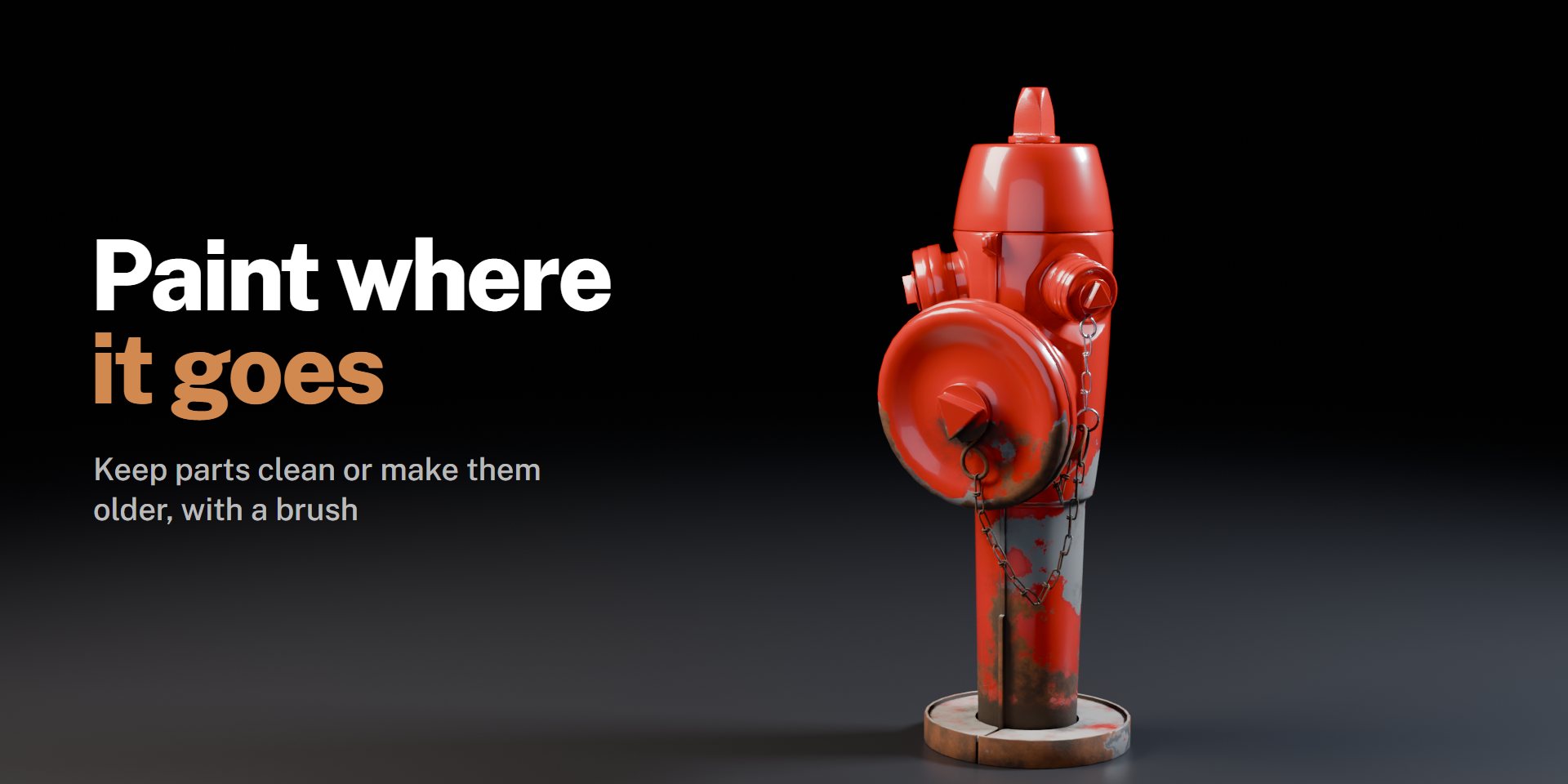
Paint where it goes
Want rust only on the lower half, or one panel kept clean? Press Older or Clean and paint on the model, or fill selected faces in Edit Mode.
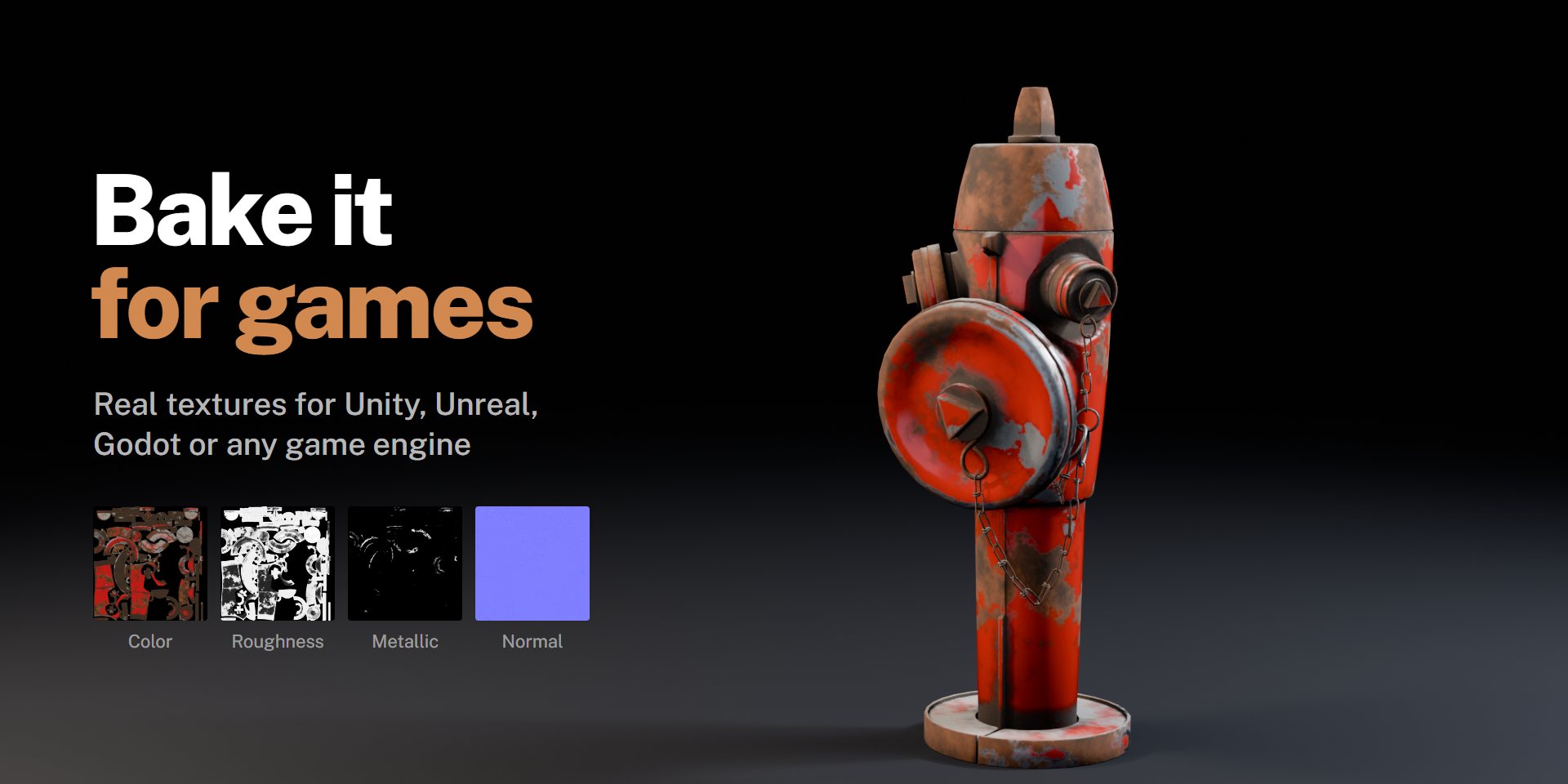
Bake it for games
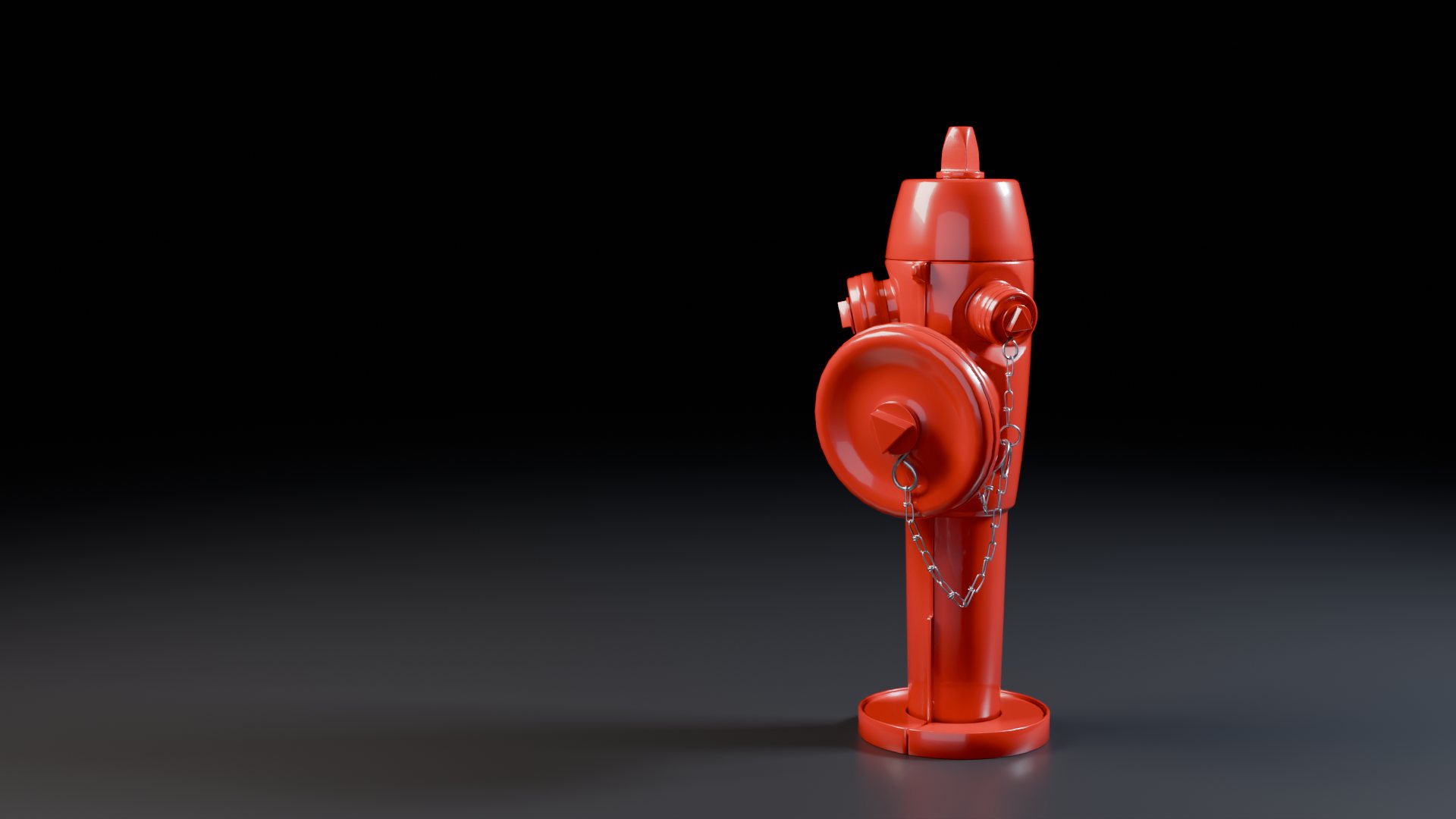
Bake for Games writes Base Color, Roughness, Metallic and Normal maps at up to 4K and builds a material with them wired up, ready for Unity, Unreal, Godot or Substance. Models without UVs get them automatically. The 3D hydrant at the top of this page is exactly that: baked maps in a web viewer.
Safe with your materials
Make It Old adds one node before the Material Output and never edits what's underneath. Make It New takes it all off again. Before shows the whole scene as it was. Every amount and color can be keyframed, driven or used in NLA.
Questions
Does it change my materials?
No. It adds a node in front of the Material Output. Make It New removes it and reconnects everything as it was.
Does it work with image textures and downloaded assets?
Yes. It goes on top of any surface shader, from a single color to a full PBR texture set.
Does it work in EEVEE?
Yes, all of it, worn edges included.
Can I use it in commercial work?
Yes. Anything you make with it is yours.
Personal or Studio?
Same add-on, same features. Personal is for one person, freelancers included. Studio is for a company where up to 10 people use it.
How do I install it?
Download the zip from your account. In Blender go to Edit > Preferences > Get Extensions, open the arrow menu at the top right, choose Install from Disk and pick the zip. Press N in the 3D View and open the Make It Old tab.