Make It 3D MS-104
Pick one image. Type what to change, or don't. Press one button. A full 3D model with real PBR textures lands in your scene, every side of it. It all runs on your own PC.
How it works
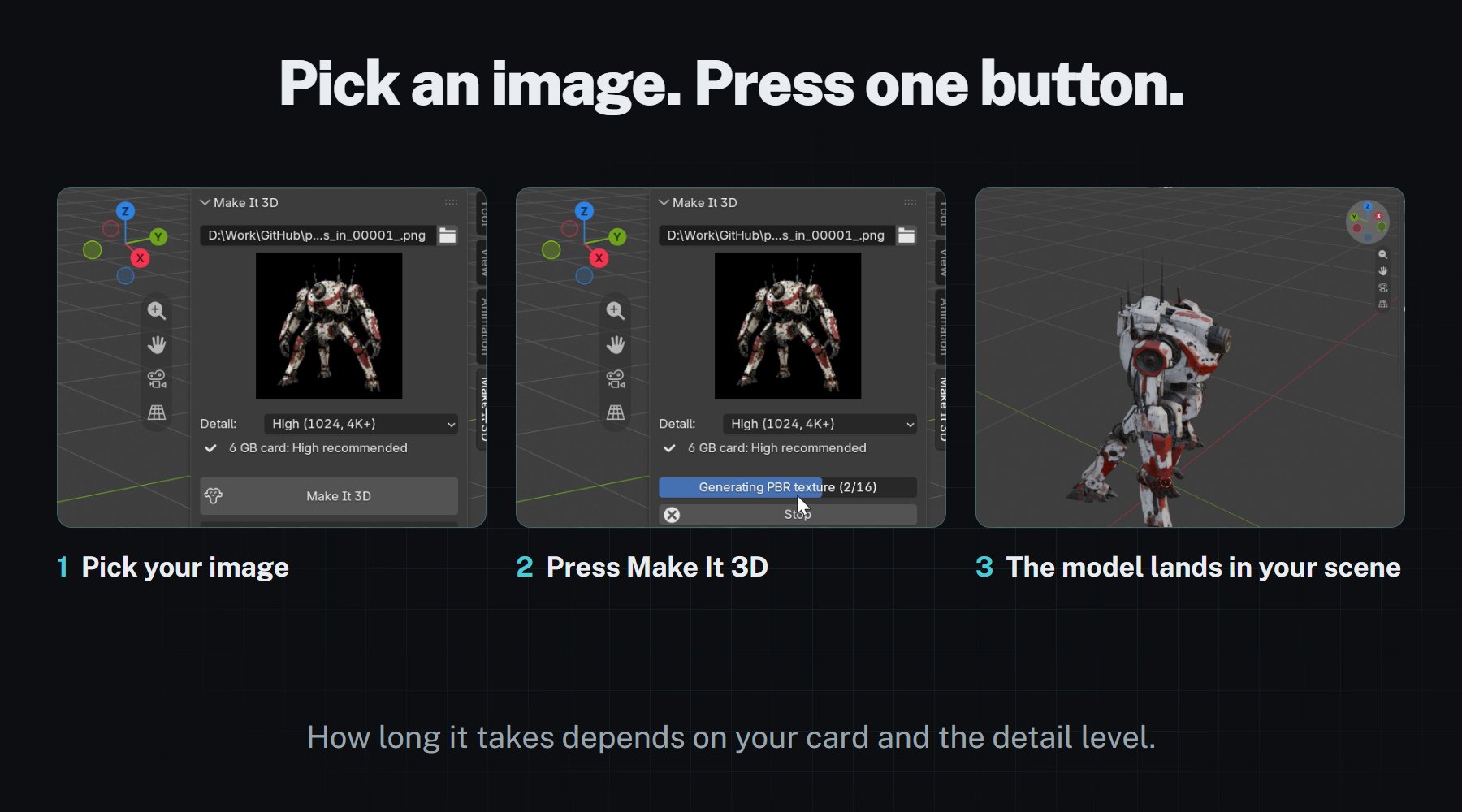
- Pick one image of one object.
- Type what to change, if anything.
- Press Make It 3D. The textured model lands at the 3D cursor.
Change it with a prompt
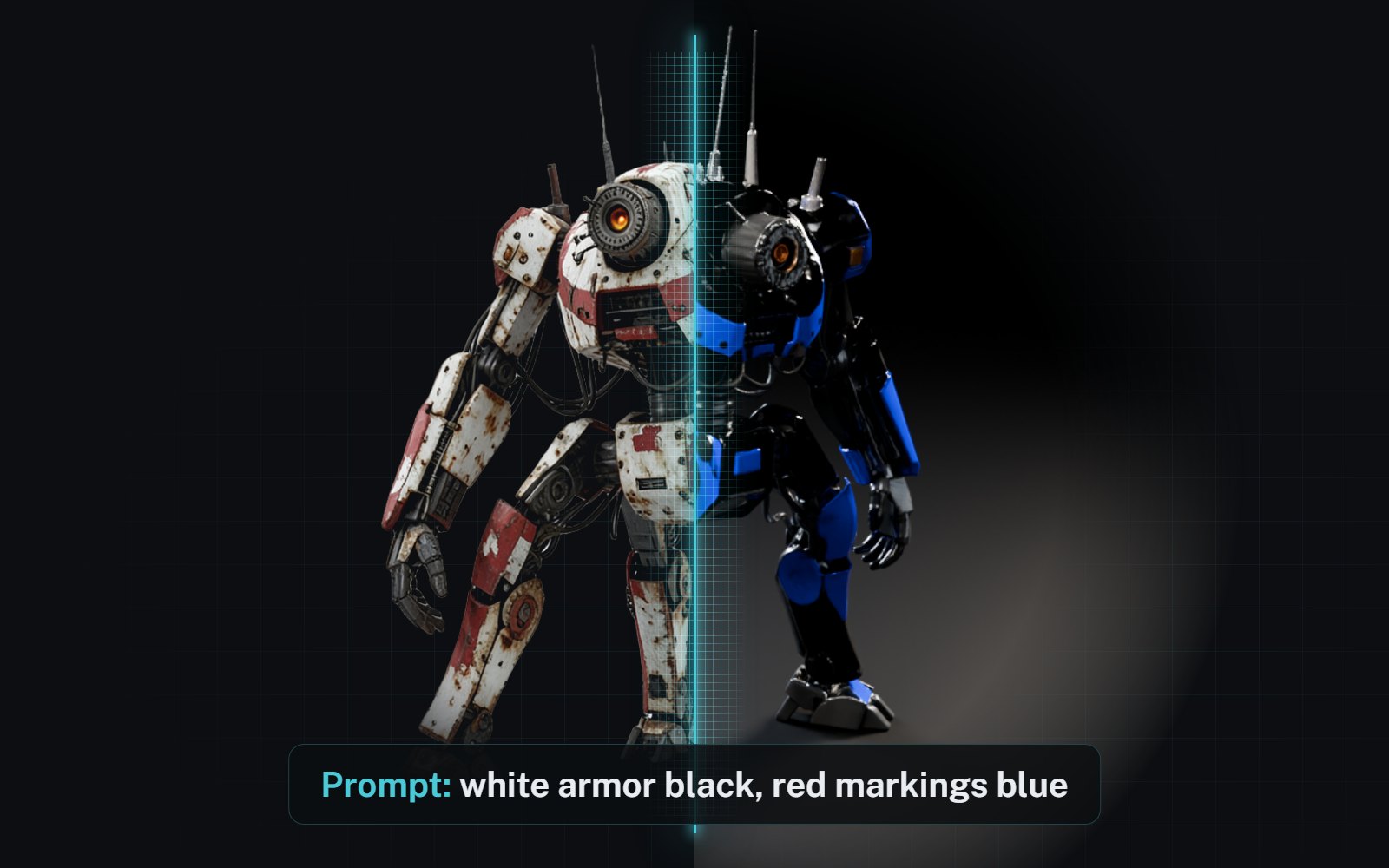
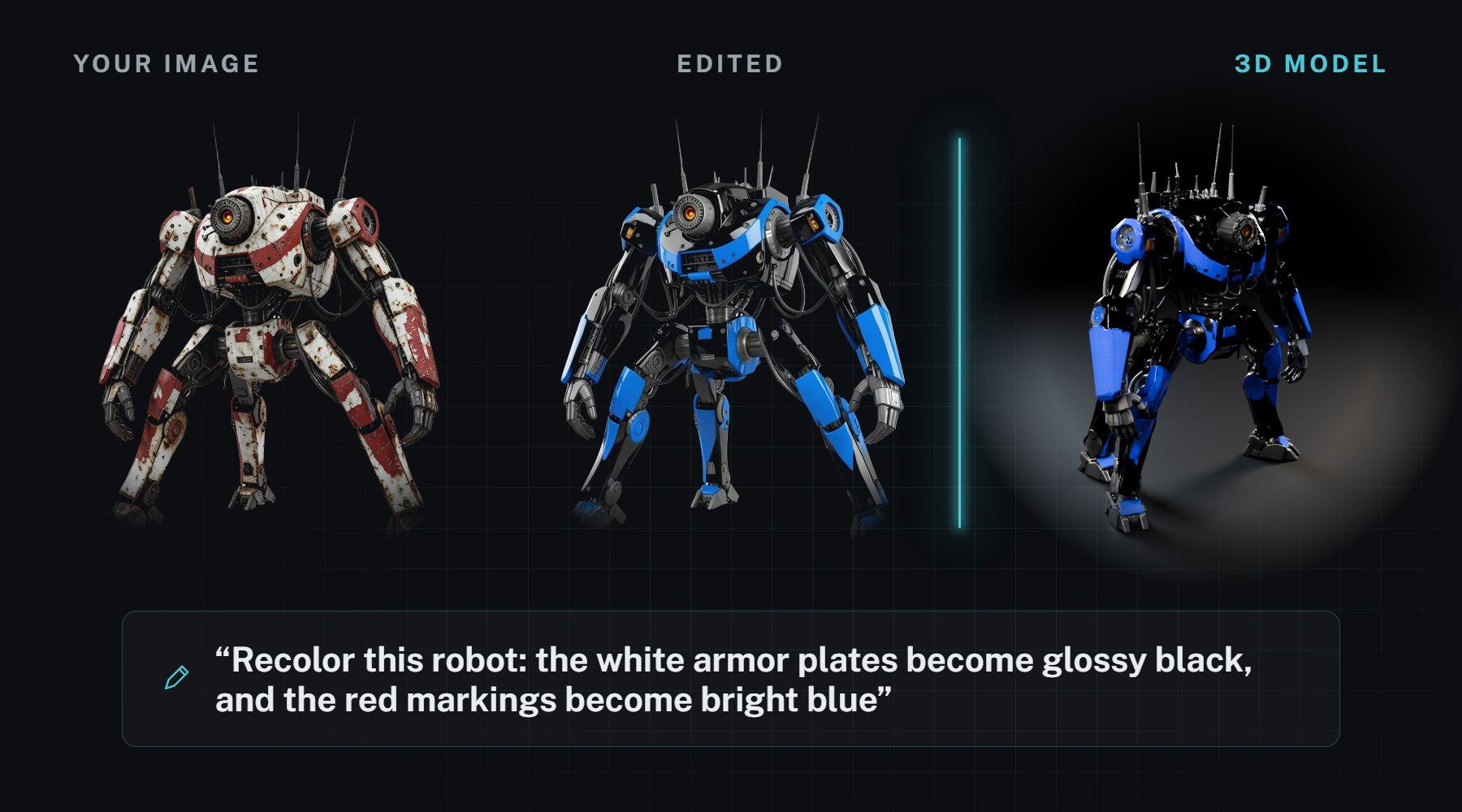
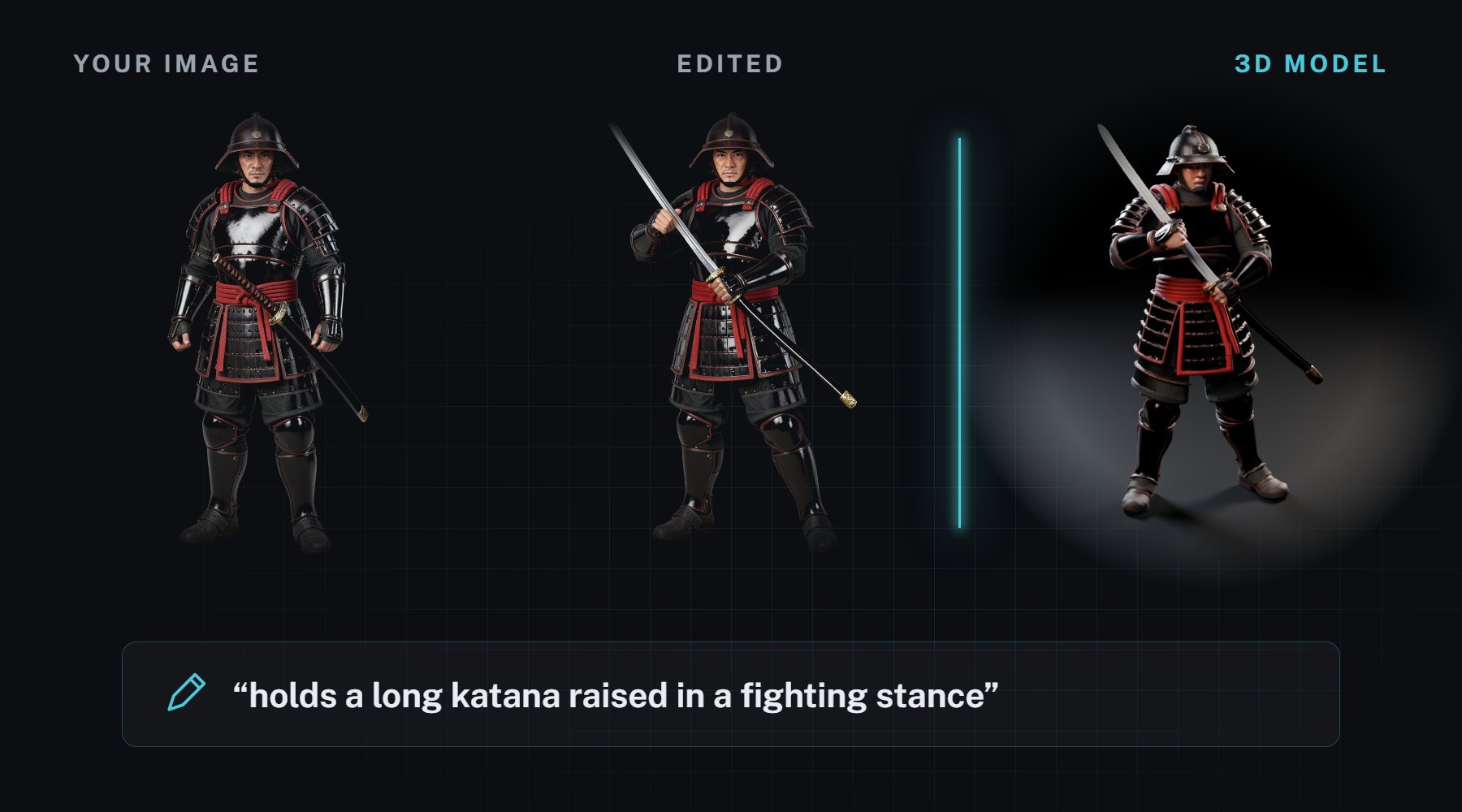
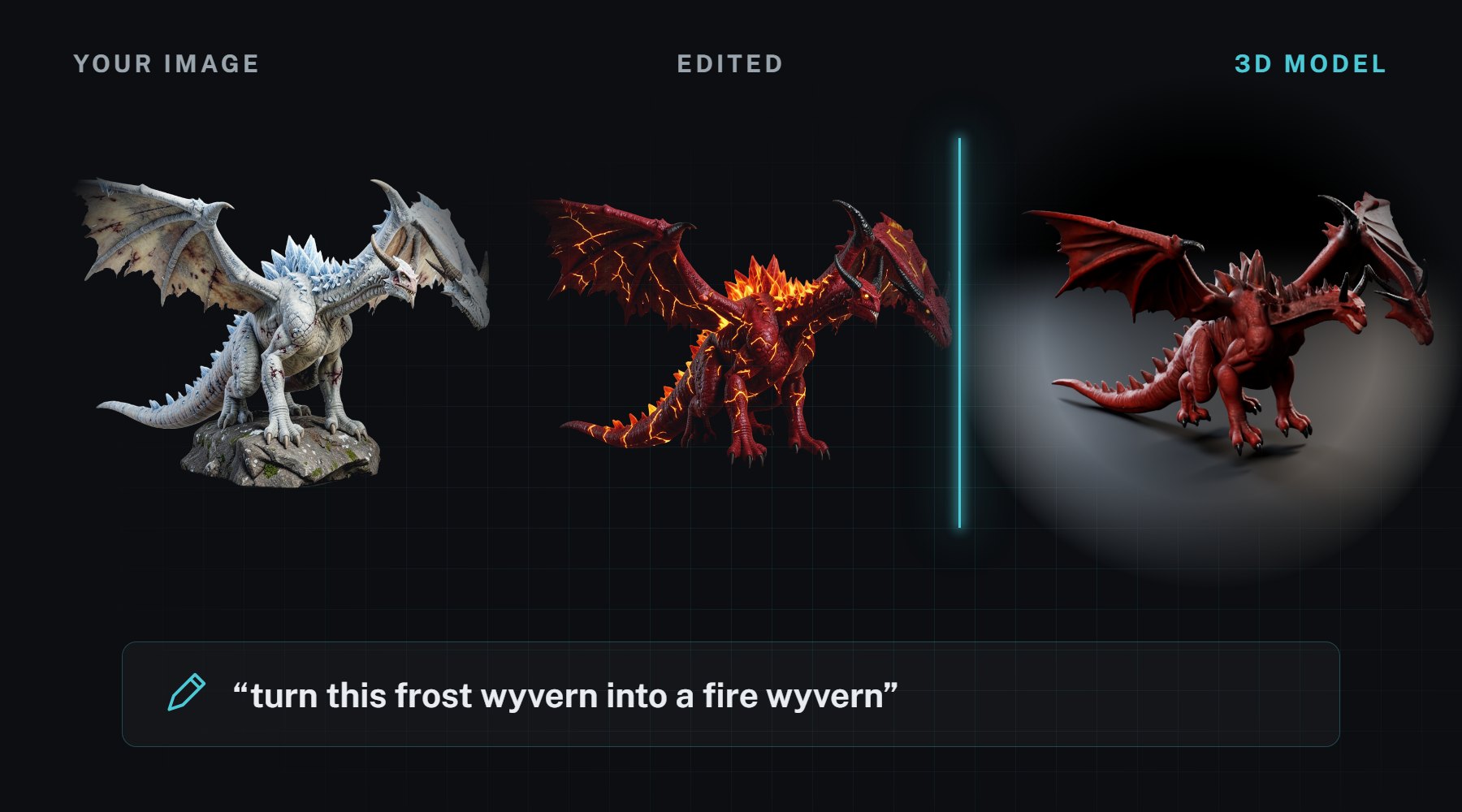
Your image isn’t the final word. Type what you want different and it edits the image first, then builds the model from that.
Looks like your image
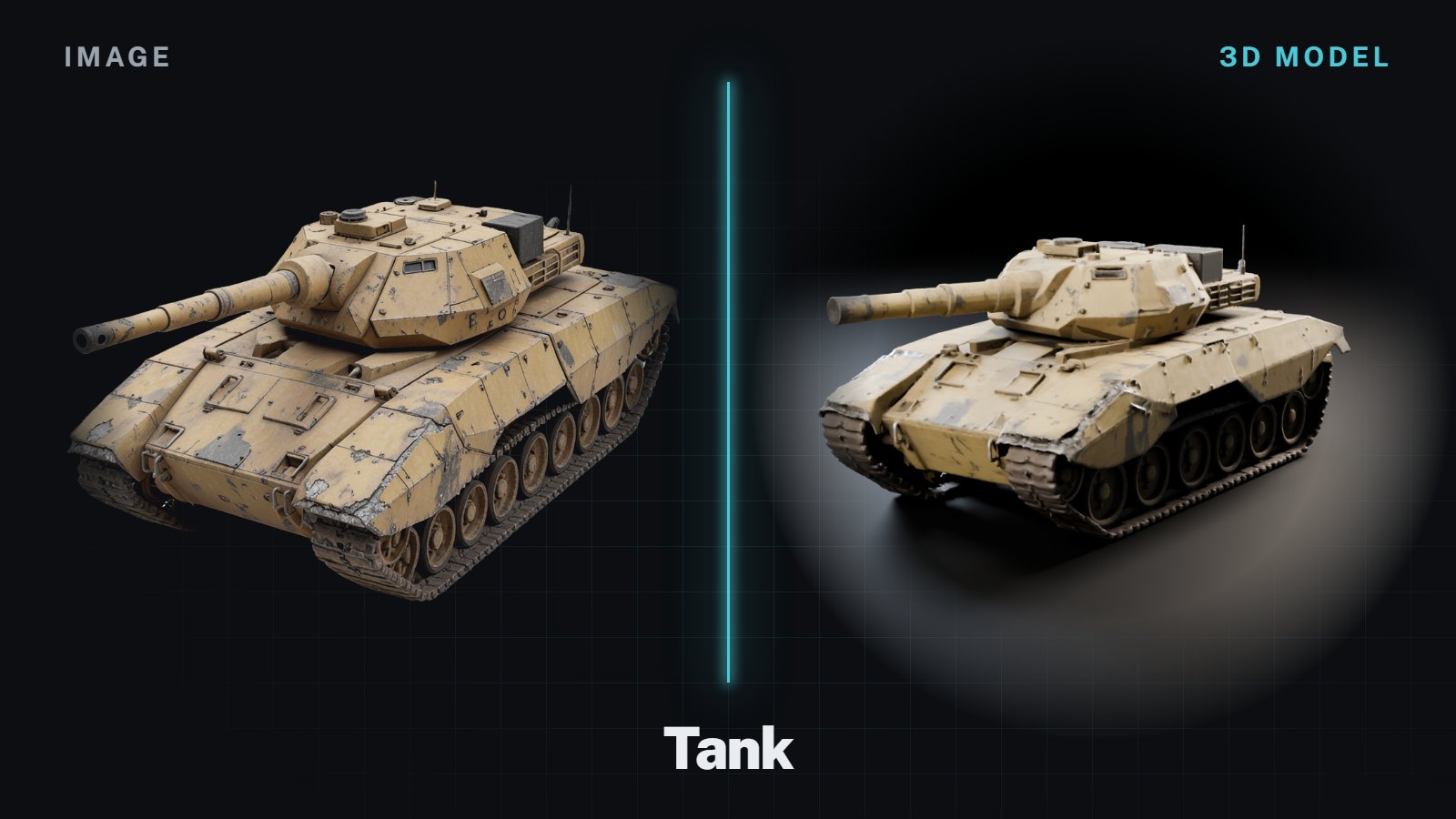
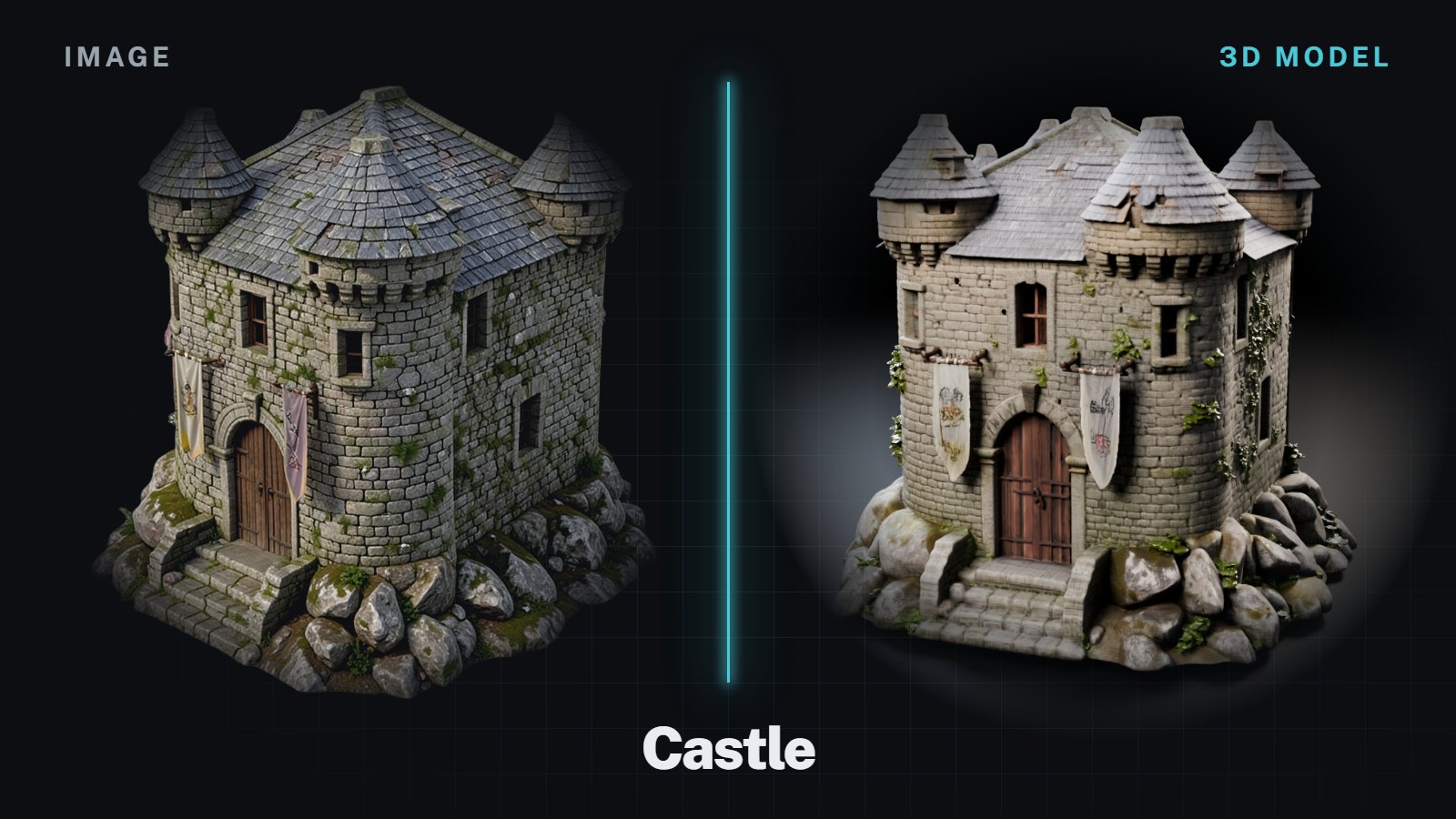
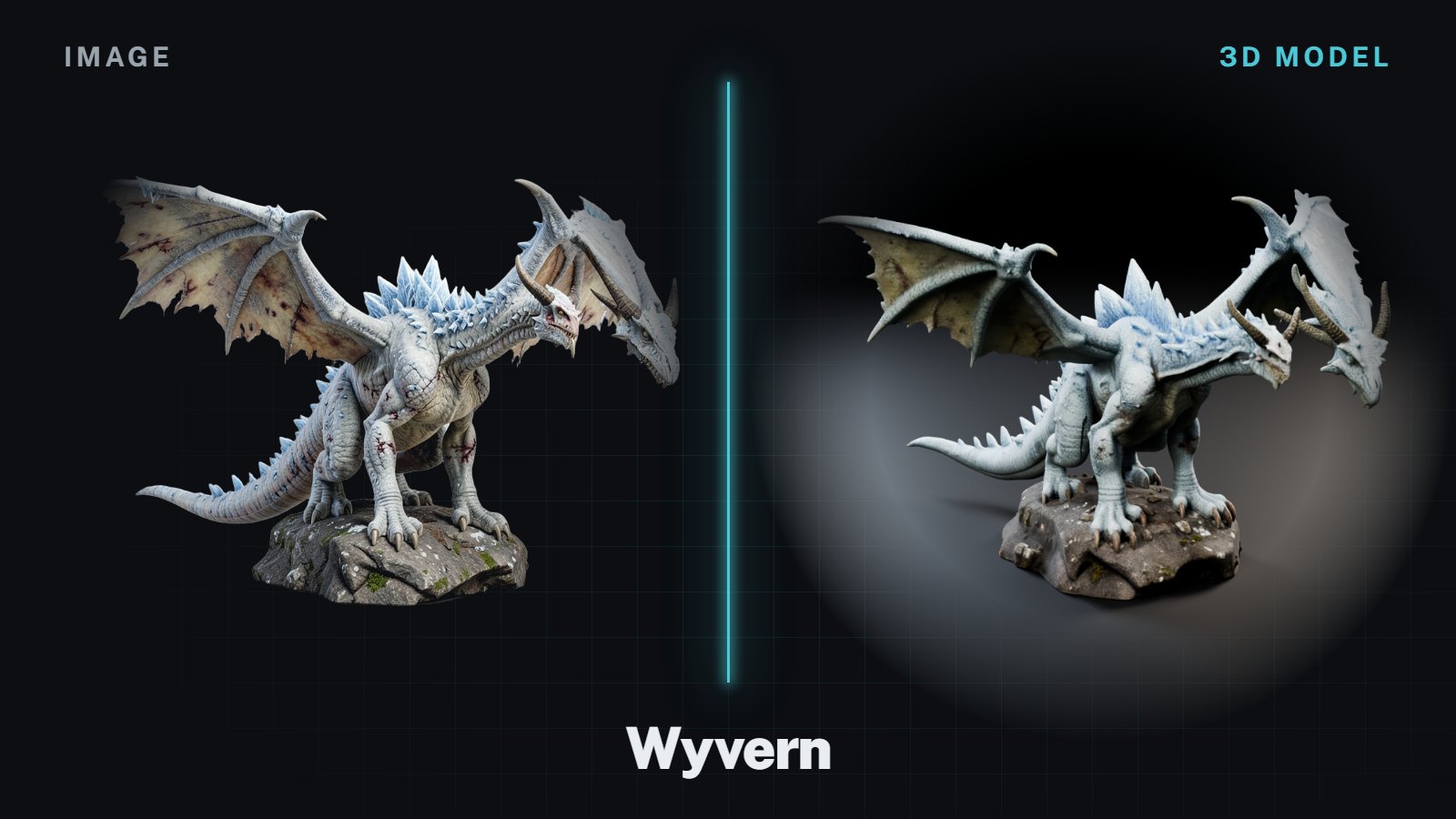
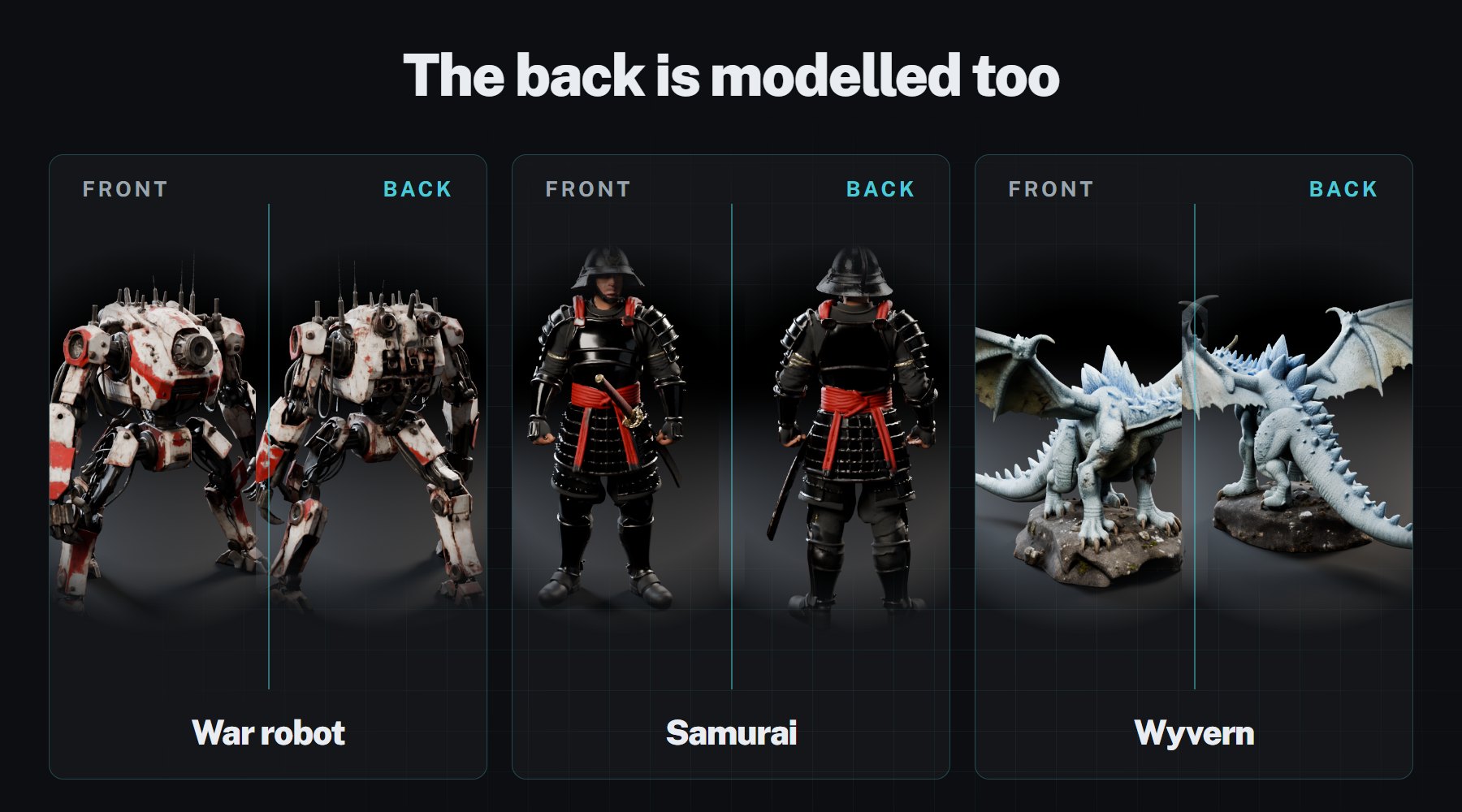
Every side
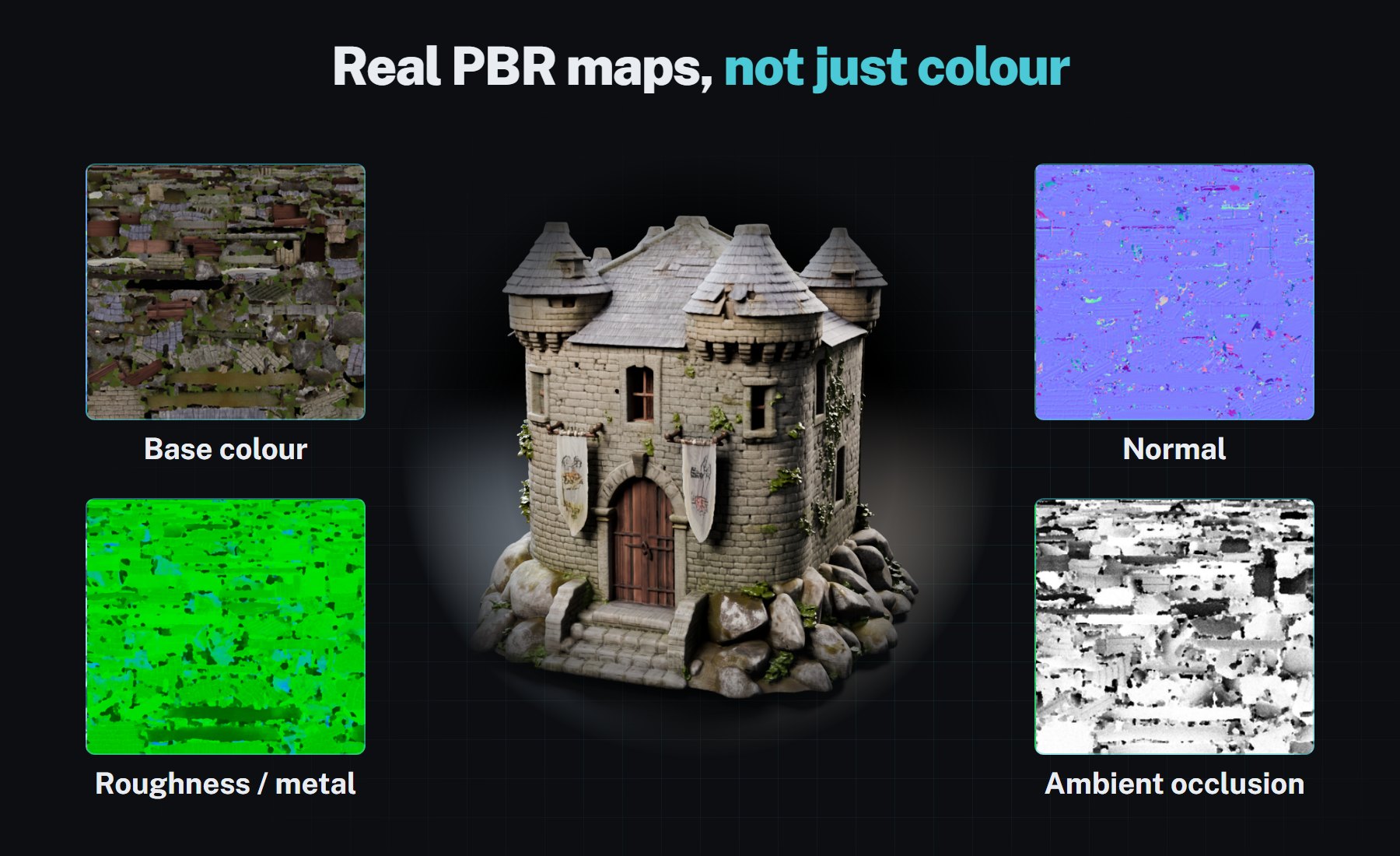
Real PBR textures
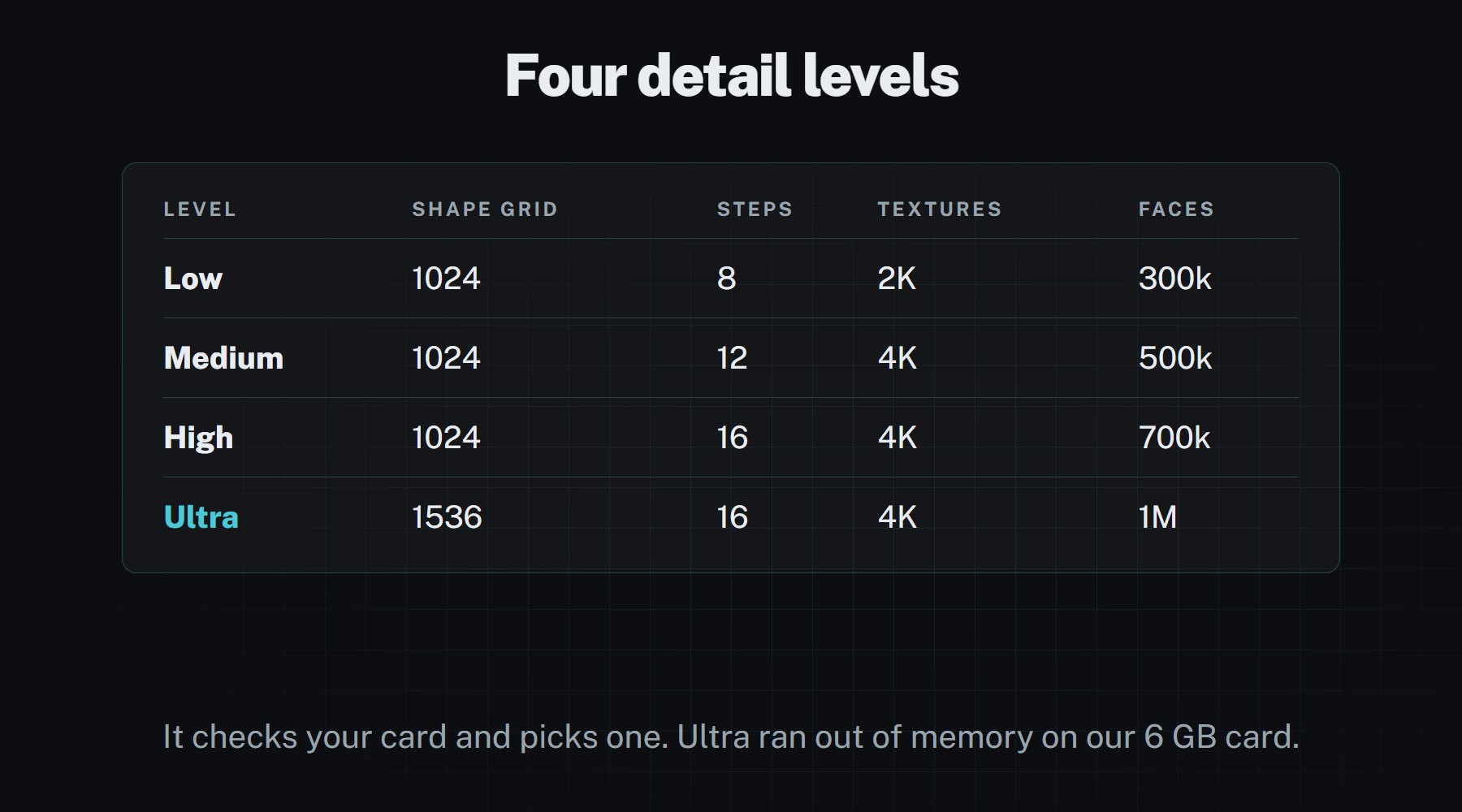
Four detail levels
It checks your card and picks one. Smooth shading, stand it upright, keep faces (adds a Decimate modifier) and seed are in the same panel.
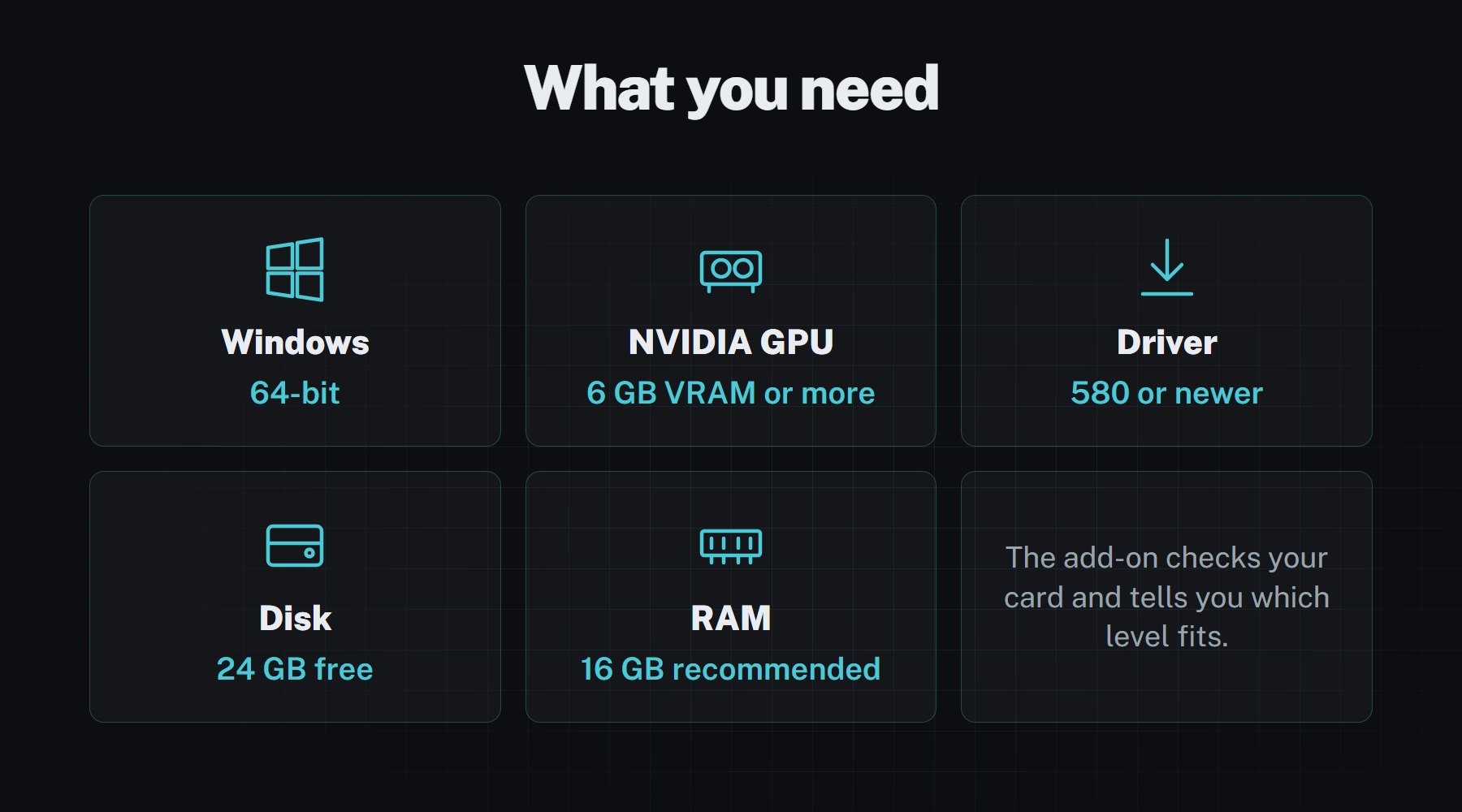
What you need
Tips for good results
Questions
Do my images leave my PC?
No. Everything runs on your own machine. No account, no credits, no cloud. After the one engine download it works offline.
What can the prompt change?
Colours, materials, props and poses. Make the armor black, put a katana in its hands, turn a frost wyvern into a fire one. The image is edited first, then that edited image becomes the 3D model. You see the edited image in the panel. Leave it empty to use your image as is.
What graphics card do I need?
An NVIDIA card with 6 GB of VRAM or more, on driver 580 or newer. The add-on checks your PC before it installs anything and tells you which detail level fits your card.
How long does one model take?
A few minutes. It depends on your graphics card and the detail level you pick: Low is the quickest, and bigger cards are faster.
What does it download?
Once, on first use: ComfyUI (2.1 GB), TRELLIS.2 (5.3 GB) with its VAEs (2.1 GB), DINOv3 (1.2 GB), BiRefNet (0.4 GB) and FLUX.2 klein for prompt edits (8.3 GB). About 19 GB, 24 GB on disk. You pick the folder.
What do I get out?
A UV mapped mesh with PBR textures (base colour, normal, roughness, metallic, AO), ready for Cycles and Eevee. Every side is modelled, not just the front.
What works best?
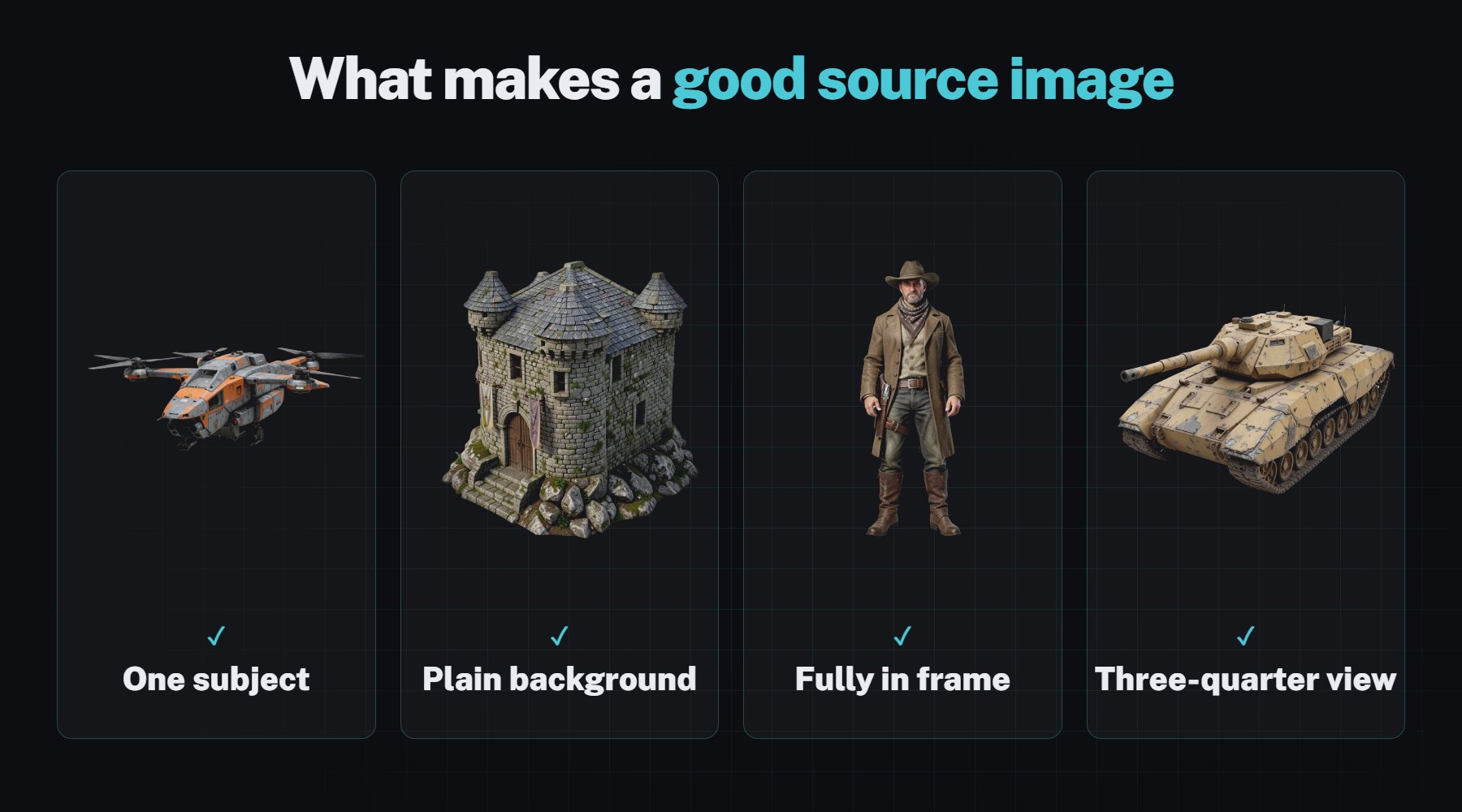
One subject, plain background, fully in frame, seen from a three-quarter angle. Characters, vehicles, buildings, creatures and props all work. It isn't for whole scenes.
macOS or Linux?
Not yet. Windows only for now.
Which models does it use?
TRELLIS.2 by Microsoft (MIT) for the 3D, DINOv3 by Meta (DINOv3 License), BiRefNet (MIT) for background removal, FLUX.2 klein 4B by Black Forest Labs (Apache-2.0) for prompt edits, all run through ComfyUI (GPL-3.0).
How do I install it?
Download the zip from your account. In Blender go to Edit > Preferences > Get Extensions, open the arrow menu at the top right, choose Install from Disk and pick the zip. Press N in the 3D View and open the Make It 3D tab.